
Every email carries a hidden set of headers that record its entire journey — every server it passed through, how long each hop took, and whether it passed authentication. The header analyzer turns that wall of text into a readable report. Here's how to use it.
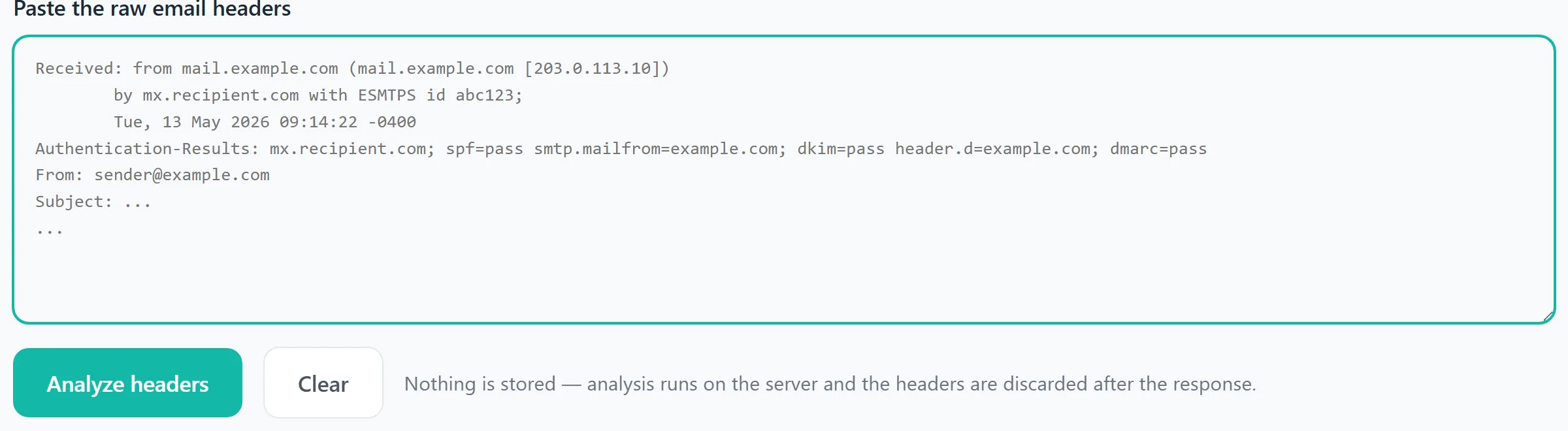
Step 1 — Paste the raw headers
First, get the raw headers from your mail client (in Gmail: open the message → ⋮ menu → Show original; in Outlook and Apple Mail there's a similar "view source" option). Copy everything, paste it into the header analyzer, and press Analyze headers. Nothing is stored — the analysis runs on the server and the headers are discarded after the response.
Step 2 — Read the analysis
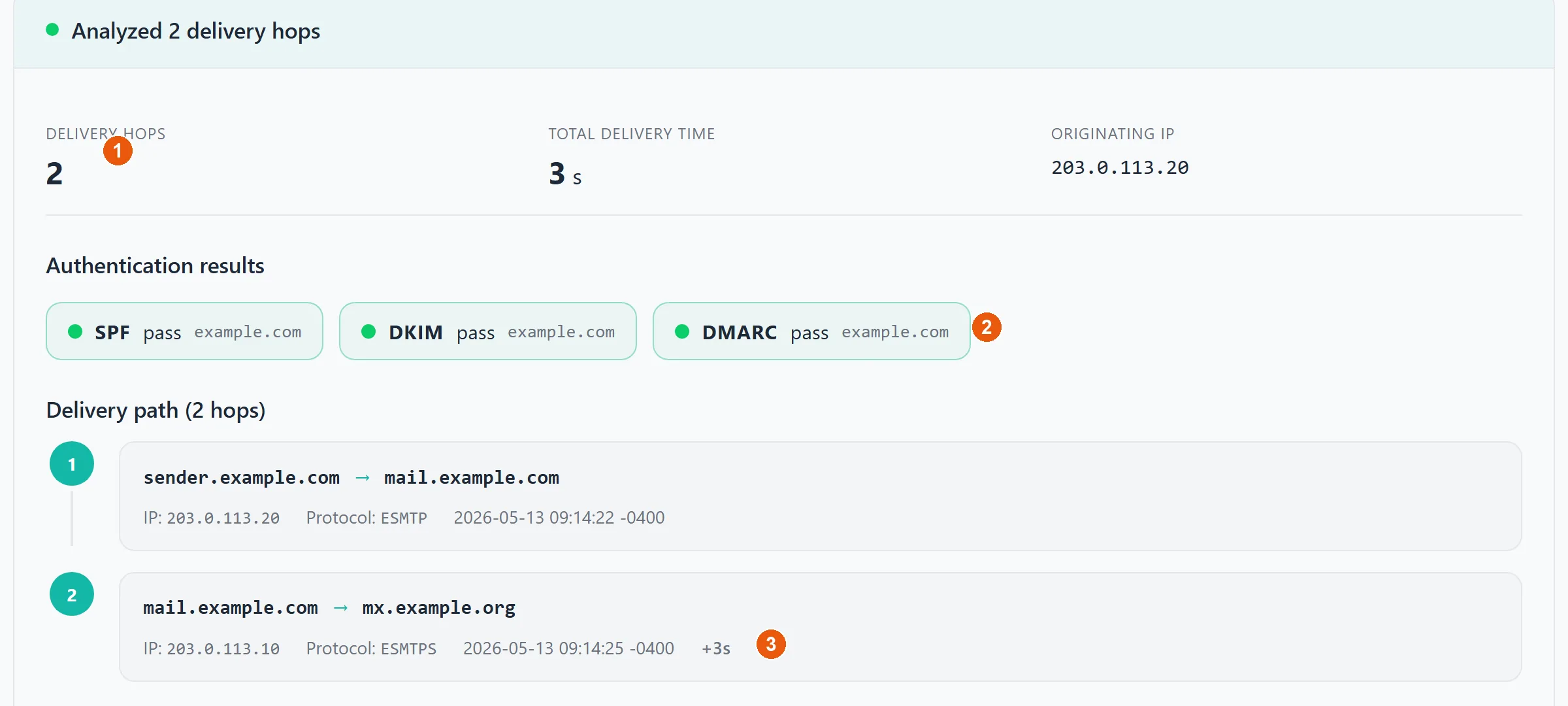
The analyzer reconstructs the message's path and surfaces what matters:
- 1An at-a-glance summary — the number of delivery hops, total transit time, and the originating IP the message actually came from.
- 2The authentication results — whether SPF, DKIM, and DMARC passed, pulled straight from the
Authentication-Resultsheader. - 3The delivery path, hop by hop, with the delay at each hop (the
+3shere) so you can spot a slow relay that's holding mail up.
Headers are read bottom to top — the oldest Received line (the original sender) is at the bottom, the most recent at the top. To understand what the SPF, DKIM, and DMARC results actually mean, read SPF, DKIM & DMARC explained.